Ctrl+K
Logo image

Edge.Auto Documentation

Site Navigation

  • TIER IV Automotive HDR Camera
  • Sensor Fusion System
  • GMSL2-10GbE Conversion Module
  • GMSL2-USB3.0 Conversion Kit
  • Knowledge Base
  • Downloads
  • TIER IV ADK
  • TIER IV

Site Navigation

  • TIER IV Automotive HDR Camera
  • Sensor Fusion System
  • GMSL2-10GbE Conversion Module
  • GMSL2-USB3.0 Conversion Kit
  • Knowledge Base
  • Downloads
  • TIER IV ADK
  • TIER IV

Section Navigation

  • 1. TIER IV Automotive HDR Camera Getting Started Guide
    • 1.1. Support List
    • 1.2. Installation Guide for NVIDIA Jetson AGX Orin Developer Kit
    • 1.3. Installation Guide for ADLINK RQX-59G
    • 1.4. Installation Guide for Vecow EAC-5000
    • 1.5. Installation Guide for Connect Tech Anvil
    • 1.6. Installation Guide for Syslogic RML-A4AGX
    • 1.7. Camera Operation and Configuration Guide
  • 2. Camera Control Tool User Manual (t4cam-ctrl)
  • 3. Hardware Reference Manuals
    • 3.1. C1 Camera Hardware Reference Manual
    • 3.2. C2 Camera Hardware Reference Manual
    • 3.3. C3 Camera Hardware Reference Manual
  • 4. FAQ
    • 4.1. Can I adjust the camera settings such as exposure, gain, and shutter speed?
    • 4.2. What are the options for C1 camera Field of View (FOV)?
    • 4.3. What are the options for C2 camera Field of View (FOV)?
    • 4.4. What is the camera size of C1 for each lens?
    • 4.5. What is the camera size of C2 for each lens?
    • 4.6. Can I change the frame rate?
    • 4.7. What is the shutter type?
    • 4.8. Does the camera have a zoom function?
    • 4.9. Can I switch the shutter mode between rolling and global?
    • 4.10. What’s the maximum length of the cable I can use?
    • 4.11. Can I use a different ECU other than the recommended one?
    • 4.12. What is the image delay from the camera to the ECU?
    • 4.13. Is it possible to communicate and supply power with PoE?
    • 4.14. Can I use the cameras with a USB interface?
    • 4.15. Is it compatible with PTP IEEE1588?
    • 4.16. How do I install the camera driver?
    • 4.17. How can I inquire about products and services?
    • 4.18. What should I do if the product is defective or malfunctions?
    • 4.19. What is the operating temperature range of the cameras?
    • 4.20. Is exterior CAD data available?
    • 4.21. What environmental standards do the cameras comply with?
    • 4.22. Can I use the C1 and C2 at the same time, with the same ECU?
    • 4.23. Can I use the Raspberry pi to receive the data from the TIER IV cameras by using GMSL2-USB3.0 converter?
    • 4.24. Can I fix the relationship between the GMSL port number and the device name?
    • 4.25. Some cameras don’t start streaming image when I connect multiple (for instance, 8) cameras. This happens occasionally
    • 4.26. I would like to know which ECU I can use with TIER IV cameras and from who I should get support.
    • 4.27. I can’t play videos in VLC media player
    • 4.28. Is it possible to obtain the internal parameters and distortion correction coefficients used during camera calibration from the camera?
    • 4.29. When using NVMe storage for root system(M.2 SSD)
    • 4.30. I see I2C write errors in kernel messages after driver installation
  • TIER IV Automotive HDR Camera
  • 1. TIER IV Automotive HDR Camera Getting Started Guide
  • 1.3. Installation Guide for ADLINK RQX-59G

1.3. Installation Guide for ADLINK RQX-59G#

Note

This document is for users of the ADLINK RQX-59G.

Note

This document is based on tier4_automotive_hdr_camera version 2.2.0.

1.3.1. Required Items#

1.3.1.1. Hardware Requirements#

  • ADLINK ROSCube-X RQX-59G

  • FAKRA coaxial cables (FAKRA to mini FAKRA, 1:4)

  • TIER IV Automotive HDR Camera (C1, C2, C3, C1-MP, or C2-MP)

1.3.1.2. Software Requirements#

Software

Version

Download Link

RQX-59G BSP (JetPack)

r36.4 (6.1)

BSP on the RQX-59G Product Page

tier4-gmsl-camera

2.2.0

tier4_automotive_hdr_camera repository

1.3.2. Flashing the OS (BSP)#

Attention

Please note that the BSP flashing process is outside our standard support scope. For any inquiries, troubleshooting, or issues related to OS installation, please contact your hardware distributor or ADLINK support directly.

Please refer to the Manual on the RQX-59G Product Page for instructions on flashing the BSP to your device.

1.3.3. Hardware Connection#

  1. Ensure that the RQX-59G is powered off.

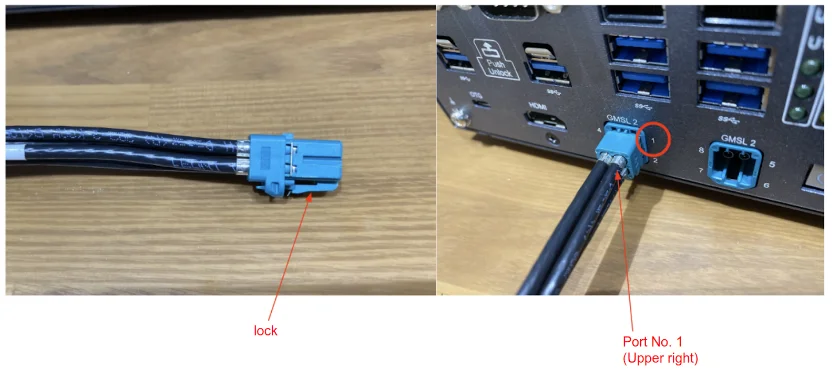
  2. Connect the cameras to the FAKRA connectors of the cable (single FAKRA connector side). Then insert the mini FAKRA connectors of the cable into the RQX-59G’s GMSL2 ports.

  3. Ensure that the lock tabs on the FAKRA connectors are properly seated.
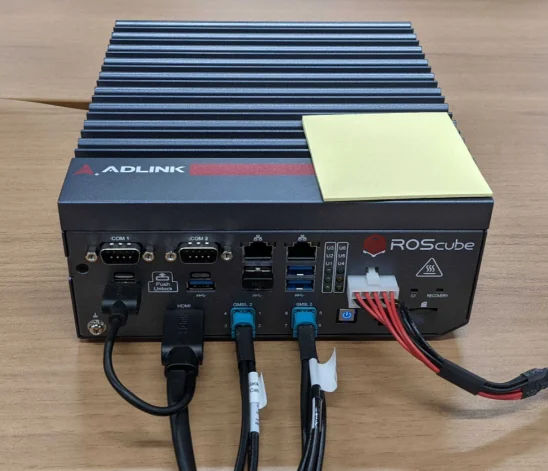
../../_images/c1_start_guide_fig1.webp

Fig. 1.7 RosCube RQX-59G#

../../_images/c1_start_guide_fig2.webp

Fig. 1.8 Connector#

Restriction regarding C2 and C3 camera

Currently, two C2 / C3 cameras cannot be connected to single deserializer board.

For example:

  • Port 1 and 2 … NG

  • Port 3 and 4 … NG

  • Port 1 and 3 … OK

  • Port 1 and 5 … OK

1.3.4. Power ON and Login#

Power On

Power on the RQX-59G and confirm that the power-on LED illuminates blue.

Login

Please log in using the username and password configured during the BSP flashing process.

For example, the factory default login password is as follows:

user

ros

password

adlinkros

Note

The factory default BSP version may not match the required version. If this is the case, please proceed to flash the BSP.

1.3.5. Camera Driver Installation#

This process should be performed on the RQX-59G.

Step 1: Download the Driver

Open a terminal on the RQX-59G and run the following command to download the driver package.

wget https://github.com/tier4/tier4_automotive_hdr_camera/releases/download/v2.2.0/tier4-camera-gmsl_2.2.0_arm64.deb

Step 2: Install the Driver

Execute the following command in the directory where the downloaded .deb file is located to install the package.

sudo apt install ./tier4-camera-gmsl_*.deb

Step 3: Configure the Device Tree

Note

For advanced configurations, including how to connect a combination of different camera types, please refer to the camera driver’s GitHub page.

After installing the driver, you need to generate a custom .dtb file to define the assignment of cameras for each GMSL port. Run the command corresponding to your camera type:

  • C1

    sudo /opt/nvidia/jetson-io/config-by-hardware.py -n 2="TIERIV GMSL2 Camera Device Tree Overlay: C1x8"
    
  • C2

    sudo /opt/nvidia/jetson-io/config-by-hardware.py -n 2="TIERIV GMSL2 Camera Device Tree Overlay: C2x8"
    
  • C3

    sudo /opt/nvidia/jetson-io/config-by-hardware.py -n 2="TIERIV GMSL2 Camera Device Tree Overlay: C3x8"
    
  • C1-MP

    sudo /opt/nvidia/jetson-io/config-by-hardware.py -n 2="TIERIV GMSL2 Camera Device Tree Overlay: C1MPx8"
    
  • C2-MP

    sudo /opt/nvidia/jetson-io/config-by-hardware.py -n 2="TIERIV GMSL2 Camera Device Tree Overlay: C2MPx8"
    

Step 4: Restart the System

To apply the device tree changes, power off the system and turn it back on.

sudo shutdown -h now

(After the RQX-59G has completely shut down, press the power button to restart it.)

1.3.6. Verify Camera Recognition#

Open a terminal and run the following command to verify that the cameras are recognized as V4L2 devices. If the number of video devices matches the number of connected cameras, the camera recognition check is complete.

ls /dev/video*
/dev/video0
/dev/video1
.
.

1.3.7. Reference#

  • ADLINK RQX-59G Product Page

  • ADLINK’s documentation

1.3.8. Next Steps#

For image acquisition and detailed settings, please refer to the Camera Operation and Configuration Guide.

previous

1.2. Installation Guide for NVIDIA Jetson AGX Orin Developer Kit

next

1.4. Installation Guide for Vecow EAC-5000

On this page
  • 1.3.1. Required Items
    • 1.3.1.1. Hardware Requirements
    • 1.3.1.2. Software Requirements
  • 1.3.2. Flashing the OS (BSP)
  • 1.3.3. Hardware Connection
  • 1.3.4. Power ON and Login
  • 1.3.5. Camera Driver Installation
  • 1.3.6. Verify Camera Recognition
  • 1.3.7. Reference
  • 1.3.8. Next Steps
Last updated on 2026-06-15

© Copyright 2023, TIER IV.